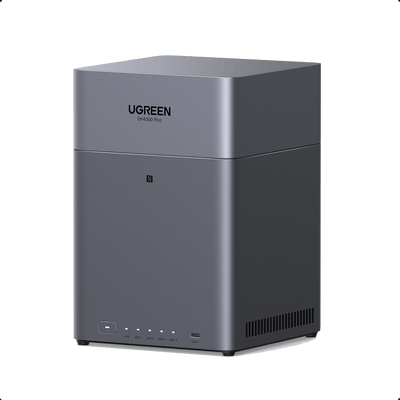
How to Fix “No Device Found” on UGREEN NAS
If your NAS displays a “No device found” prompt, the cause is usually not hardware failure.
Start with the basics: check power, cables, LAN lights, and your router’s connected device list. Then confirm whether your computer and NAS are on the same local network.
Key Takeaways
- A “No device found” error is usually caused by a network or configuration issue, not a failed NAS.
- Power, Ethernet cables, LAN indicator lights, and router device lists should be checked first.
- Your computer and NAS should usually be on the same local network, with compatible IP address, subnet mask, and gateway settings.
- A successful ping test confirms local reachability, but a failed ping does not always mean the NAS is offline.
- SMB, NFS, WebDAV, Bonjour, mDNS, or related discovery services may need to be enabled depending on how you access the NAS.
- Firewalls, antivirus tools, guest Wi-Fi, VLANs, VPNs, and IP conflicts can all prevent NAS detection.
- Assigning a reserved IP address and keeping software updated can reduce recurring detection issues.
Quick Diagnosis: Why Your NAS Is Not Being Found
| Symptom | Likely Cause | What to Check |
|---|---|---|
| NAS has no lights or abnormal blinking | Power or boot issue | Power adapter, outlet, surge protector, LED status |
| NAS does not appear in router device list | Network cable, router port, Wi-Fi isolation, or connection issue | Ethernet cable, router port, LAN lights |
| NAS appears in router but not on computer | Different subnet, firewall, VPN, or discovery issue | IP range, gateway, ping, firewall, VPN |
| NAS works by IP but not hostname | DNS, Bonjour, mDNS, or name resolution issue | Use IP address manually, flush DNS, check discovery services |
| Ping request times out | Wrong IP, subnet issue, firewall, VLAN, guest Wi-Fi, or ICMP blocking | Router device list, firewall rules, VPN, VLAN settings |
| NAS app cannot find device | App version, network isolation, firewall, or local discovery blocked | Update app, restart app, check LAN and firewall |
| SMB/NFS/WebDAV does not connect | File service disabled or permission issue | Enable protocol, check user permissions, allow firewall access |
Step 1: Verify Basic Hardware and Power
Start with the basics. Confirm NAS storage is powered on and that the power supply is securely connected.
Inspect the Power Connection
A loose plug or tripped surge protector can make the NAS vanish from the network. Check the front panel indicators:
- No lights or unusual blinking may suggest the NAS hasn’t fully booted.
- Ensure all cables are secure and the power source is stable.
For a detailed breakdown of what each light pattern means, see our guide to NAS LED indicators and their meanings.

Step 2: Check the Network Cable, LAN Port, and Router
Next, confirm that the network connection is stable.
Check the following:
- Reseat the Ethernet cable at both ends.
- Try a different Ethernet cable.
- Try another LAN port on the router or switch.
- Confirm the NAS LAN indicator is active.
- Avoid guest Wi-Fi or isolated Wi-Fi networks during setup.
If the NAS is connected by Ethernet but your computer is on Wi-Fi, that is normally fine as long as both are on the same main network.
LAN Indicator Lights
Use the NAS LAN indicator lights as a quick signal:
- White flashing usually indicates normal network activity.
- Orange flashing may indicate a connection or link issue.
If there is no LAN activity, test another cable and router port before assuming the NAS itself has a problem.
Step 3: Confirm the NAS Appears in Your Router
Log in to your router or switch management interface and open the connected device list. This may be labeled:
- Connected Devices
- Device List
- LAN Status
- DHCP Clients
- Attached Devices
Look for your UGREEN NAS and confirm that it has an IP address.
Common router gateway addresses include:
192.168.1.1192.168.0.1
If the NAS appears in the router list but your computer still cannot find it, continue with IP address and same-network checks.
Step 4: Check Whether Your Computer and NAS Are on the Same Network
Find Your Computer’s IP Address on Windows
- Press Win + R.
- Type cmd and press Enter.
- Run:
ipconfig
- Look for:
- IPv4 Address
- Subnet Mask
- Default Gateway
Find Your Computer’s IP Address on macOS
Use the graphical method first:
- Open System Settings.
- Go to Wi-Fi or Network.
- Select your active connection.
- Open Details or TCP/IP.
- Check the IP address and router address.
You can also use Terminal:
ifconfig
Look for the active Wi-Fi or Ethernet interface and note the inet address. Ignore 127.0.0.1, which is the local loopback address.
Find Your UGREEN NAS IP Address in UGOS Pro
On your UGREEN NAS:
- Open UGOS Pro Control Panel.
- Go to Network Settings.
- Open Network Connections.
- Check the IP address for LAN1 or LAN2.
If your NAS has multiple LAN ports, make sure you are checking the active port connected to your router or switch.
Step 5: Run a Ping Test
After you find the NAS IP address, test whether your computer can reach it.
On Windows
Open Command Prompt and run:
ping 192.168.1.100
Replace 192.168.1.100 with your NAS IP address.
On macOS or Linux
Open Terminal and run:
ping 192.168.1.100
Replace the example IP with your NAS IP address.
If the Connection Works
You should see replies similar to:
Reply from 192.168.1.100: bytes=32 time<1ms TTL=64

This means your computer can reach the NAS over the local network.
If the Request Times Out
You may see:
Request timed out.
A timeout means the NAS isn’t reachable, and you should continue to the next steps.
Step 6: Check NAS Discovery and File Services
If the NAS is reachable by IP but does not appear in File Explorer, Finder, or the UGREEN NAS app, check software and network service settings.
- SMB, AFP, or NFS must be enabled for the NAS to appear in file browsers.
- Windows mainly uses SMB, while older macOS versions may also use AFP.
- Turn on UPnP, Bonjour, or mDNS to help the system automatically locate your NAS. If these are off, you can still connect by entering the IP address manually.
Step 7: Check the UGREEN NAS App
- Open the UGREEN NAS app.
- Make sure it’s updated to the latest version.
- Restart the app after updating to refresh network detection.
If the app still cannot find the NAS, try accessing the NAS directly by IP address in a browser. If IP access works, the problem is likely app discovery, firewall rules, or local network isolation.
Step 8: Remove Firewall, Antivirus, or Security Restrictions
Firewalls and security tools can block NAS discovery or file-sharing traffic.
On Windows
- Open Control Panel.
- Go to System and Security → Windows Defender Firewall.
- Click Allow an app through Windows Defender Firewall.
- Add the UGREEN NAS app if it is not listed.
- Confirm that private network access is allowed.
- Click OK.
Also check whether third-party antivirus or internet security tools are blocking local network discovery.
On macOS
- Open System Settings or System Preferences.
- Go to Network or Security & Privacy → Firewall.
- Open Firewall Options.
- Add the UGREEN NAS app if needed.
- Allow incoming connections for trusted local network apps.
On Router or NAS Firewall
If the NAS appears online but file services do not work, check whether firewall rules are blocking essential services such as SMB, NFS, or WebDAV.
If needed, review the guide to configuring firewall rules for essential services.
Preventive Measures for Stable NAS Detection
Once your NAS is visible again, take a few preventive steps:
- Assign a static IP or reserved address to avoid IP changes after router reboots.
- Keep firmware and software updated on both NAS and router to prevent future detection issues.
- Enable system logs and email alerts to catch connection errors early.
- Test access from multiple devices, both wired and wireless, to ensure stability across the network.
Conclusion
A missing UGREEN NAS is usually caused by a local network or configuration problem rather than hardware failure. Start with power, cables, LAN lights, and router visibility. Then confirm that your computer and NAS are on the same network by checking IP address, subnet mask, gateway, and ping results.