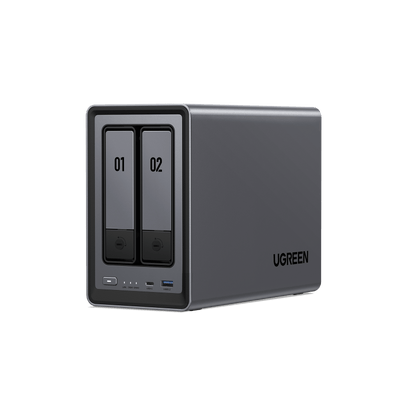
How to Connect a NAS to Your Mac: Setup, Backup (December 2025 Update)
If you’re running out of space on your Mac or need a smarter way to manage your files, a NAS (Network Attached Storage) could be just what you’re looking for. It’s like having your own private cloud - perfect for backups, organizing large files, or even creating a personal media hub.
When You Should Consider NAS for Your Mac
A NAS device is not just another storage solution. It’s a system designed to solve specific pain points that often arise with traditional storage methods.
Potential Pain Points:
-
Storage Limits Are Becoming a Problem. When your Mac’s internal storage or external drives are running out of space, NAS provides an affordable and scalable solution. No need to compromise by deleting files or constantly juggling external drives.

- File Organization Feels Overwhelming. If files are scattered across multiple devices or drives, it can become a hassle to locate what you need. A NAS device offers a unified location for storing all your data, easily accessible from your Mac and other devices.
- Handling Large Files Becomes Inefficient. Creative professionals often deal with large media files like videos, RAW photos, and design assets. A NAS delivers the performance and capacity required to manage and access such files without slowing down your workflow.
- Shared Workflows Are a Priority. For teams or households where multiple users need access to the same files, NAS provides shared storage that eliminates the inefficiency of file transfers. Permissions can be set to protect sensitive data.
- Backup Needs Are Increasing. If you don’t already have a reliable backup system, or if current methods feel tedious, NAS can automate backups for your Mac. It provides both redundancy and peace of mind, keeping your files secure from hardware failures and other risks.
- Need to Access to Data From Anywhere. For remote workers or those frequently on the move, NAS enables remote access to your files through secure channels. It’s a perfect alternative to cloud services, providing control and privacy.
{{UGPRODUCT}}
Benefits of NAS for Mac Users
A NAS device doesn’t just address immediate challenges - it transforms how you manage and access data with your Mac.
- Native Compatibility with macOS. NAS systems support protocols designed for macOS, such as SMB. Features like Time Machine backups are fully supported, and access through Finder feels as intuitive as managing local storage.
- Cost-Effective Storage Expansion. Instead of investing in expensive Mac upgrades, a NAS allows you to add storage incrementally at a lower cost. It’s particularly useful for those needing multi-terabyte capacities.
- Streamlined Collaboration. With NAS, multiple users can work from the same data source, eliminating delays caused by duplicate file versions. Permission settings add an extra layer of control, ensuring sensitive files are protected.
- Personalized Media Hub. Convert your NAS into a private entertainment server. Stream content directly to your Mac or other devices without the restrictions of subscription-based platforms.
- Robust Data Protection. NAS devices often include RAID configurations, which safeguard your data even if a drive fails. Additional encryption features protect your files from unauthorized access.
Ways to Connect UGREEN NAS to Mac
Connecting your Mac to a UGREEN NAS is straightforward—you can use a direct Ethernet cable, access it via SMB in Finder, utilize UGREEN's native apps, or connect through NFS (Network File System).
Direct Ethernet connection NAS
Plug an Ethernet cable directly from the NAS to the Mac; assign static IPs on a separate subnet (for example Mac 192.168.2.1, NAS 192.168.2.2, mask 255.255.255.0) to avoid Wi‑Fi conflicts.
Connect to the NAS with Finder
- Ensure the NAS is powered on and connected to your router; on the NAS, enable SMB under File Services (UGREEN UGOS Pro supports SMB, FTP, NFS, WebDAV, etc.).
- On the Mac, open Finder → Go → Connect to Server, and enter
smb://<NAS-IP-or-name>(for examplesmb://192.168.1.50), then connect with your NAS username and password. - The share will mount and appear in Finder’s sidebar; add it to Login Items if you want it to auto-mount at login.
Using UGREEN apps and remote access
- Install “UGREEN NAS” for macOS/iOS from UGREEN’s download center or the App Store to manage storage pools, users, apps, and remote access.
- The NAS web interface (via browser to
http://<NAS-IP>:port) provides similar management options plus configuration of file protocols, virtual machines, and Docker if supported on your model.
UGREEN NAS Note: To find the IP address of your NAS, just enter: find.ugnas.com in your favorite web browser. This should provide you with any UGreen devices on your local network and their respective IP addresses.
Connect to the NAS via NFS
If you work with large media or project files and want lower protocol overhead, you can also use NFS (Network File System) to connect your Mac to the NAS.
- Log in to the UGOS Pro system and go to [Control Panel] > [File Service] > [NFS].
- Check the box to enable the NFS service, then click Apply to activate the settings.
- Create or select a local folder on macOS to use as the NFS mount point.
- In the “Applications” folder, open “Utilities” > “Terminal”. Drag and drop the target mount point folder into the Terminal command line, and the actual path of the folder will be shown in the Terminal. Copy this path.
- In the Terminal on macOS, enter the mount command in the following format:
sudo mount -t nfs -o resvport NAS_IP:/path/to/share /local/mount/point
UGREEN NAS Example: If the NAS shared folder is “bak”, the NAS IP address is “172.17.70.242”, and the local path on macOS is the “abc” folder under “Downloads”, the command will be as follows:
sudo mount -t nfs -o resvport,nfsvers=3 NAS_IP:/path/to/share /local/mount/point
How to Back Up Your Mac to a UGREEN NAS Using Time Machine
If you already own a UGREEN NAS, you can use Time Machine to turn it into a reliable, always-available backup destination for your Mac. Once set up, macOS will automatically create regular backups in the background.
- In the “Control Panel” app, go to “File Service” > “SMB” and enable SMB service.
- Switch to the “Advanced Settings” page and check “Enable Bonjour Service”.
- Click “Set time machine folder”, then select or create a dedicated shared folder as the backup target (creating a new folder is recommended), and click “Save” to apply.
- Open Mac Finder and click the top menu “Go” > “Connect to Server”.
- Enter the NAS address in the following format: smb://NAS_IP
- Enter your NAS username and password to log in.
- Select the Time Machine folder to connect it to your Mac. you set up on the NAS.
Configure Time Machine
- On your Mac, open Time Machine by going to “System Preferences” > “Time Machine” from the Apple menu.
- Click “Select Backup Disk”, choose the shared folder you created in the pop-up window, and then click “Use Disk”.
- Enter your NAS user credentials to authenticate.
- Check “Automatic Backup”, the system will perform the first full backup automatically, followed by incremental backups.
Set Shared Folder Capacity Quota
To prevent Time Machine from using unlimited NAS storage, it is recommended to set a capacity quota for the shared folder:
- Open the “Files” app and go to “Management” > “Shared folder management”.
- Locate the shared folder set as the Time Machine folder and click “Edit”.
- In the edit popup, switch to the General tab and scroll down to Capacity quota.
- Check “Enable”, set the maximum quota, and click “OK” to save.
How to Fix Time Machine Backup Failures to a UGREEN NAS
If the Time Machine backup destination runs out of space, macOS may report that the backup has failed. You can resolve this issue in the following ways:
Option 1: Clear the NAS Recycle Bin
Log in to the NAS system and open the Files app. Locate the shared folder used for Time Machine backups, click Recycle Bin, and empty it to free up storage space.
Option 2: Delete Old Backups in Time Machine
- Click the Time Machine icon in the menu bar and select Browse Time Machine Backups.
- When the Time Machine “starfield” interface appears, use the timeline on the right to find older backups you no longer need.
- Click the gear icon at the top of the window and select Delete Backup.
- Enter your administrator password when prompted to confirm the deletion.
You can repeat this process to remove multiple old backups until enough space is available.
Option 3: Increase the Quota of the Time Machine Shared Folder
If a storage quota has been set for the shared folder used by Time Machine, it may limit the available space and cause backup failures.
- Log in to the NAS with an administrator account.
- Open Files > Management > Shared Folder Management.
- Find the shared folder used by Time Machine and click Edit.
- Increase the Capacity quota value and save your changes.
Best NAS Devices for Mac
The UGREEN NASync DXP4800 Plus is the best choice for Mac users, for it has quite a lot to offer at an affordable price:
- Seamless integration with macOS devices through the UGOS Pro system, supporting macOS-specific protocols like SMB for smooth file transfers.
- Fully compatible with Time Machine, enabling effortless and automated backups of Mac devices.
- Equipped with a 10GbE and a 2.5GbE port for ultra-fast data transfers, perfect for large file handling on Mac systems.
- Supports 4K HDMI output and DLNA, ideal for using Macs as media hubs for streaming content.
- Includes a cross-platform app for macOS, ensuring easy NAS management and remote access.
- Up to 136TB storage capacity for storing large multimedia files or project backups from Mac devices.

Final Words
A NAS isn’t just a storage upgrade - it’s a way to streamline how you manage your Mac’s files. From easy backups with Time Machine to handling large projects and sharing files seamlessly, the right NAS device, like the UGREEN NASync DXP4800 Plus, makes life simpler. If you’re ready to boost your storage and take control of your data, it’s worth the investment!
FAQs
What is the difference between a NAS and an external hard drive?
A NAS connects to the network, enabling shared access, data redundancy, and remote usage. In contrast, an external hard drive connects directly to a single computer via USB or Thunderbolt and lacks networking capabilities. Click to read more: NAS vs External Hard Drive.
Why can’t my Mac connect to the NAS?
Common causes include incorrect network settings, permissions, or outdated software. double-check login credentials.
Can I drag and drop files from my Mac to the NAS?
Yes. Once the NAS is mounted in Finder, you can drag and drop files or even open them directly as if working with a local drive.
How can I improve file transfer speed?
Use a wired Ethernet connection instead of Wi-Fi, optimize NAS network settings, and enable high-speed interfaces such as 10GbE for faster transfers. If you want to dive deeper into common bottlenecks and how to eliminate them, our guide on fixing slow NAS transfer speeds walks through practical steps that can further boost your network performance.
Can a NAS support both Mac and Windows devices?
Yes. A NAS is designed to be compatible with multiple operating systems including Mac and Windows.
Does a NAS protect against data loss?
Most NAS devices support RAID configurations, which provide redundancy in case of a disk failure. However, RAID is not a substitute for backups; ensure you have an additional backup solution.
How can I keep my NAS secure?
Restrict access permissions, update the NAS firmware regularly, for an extra layer of protection, enable multi-factor authentication on all admin and user accounts. Follow our step-by-step NAS MFA setup guide to choose an authenticator app, store recovery codes, and avoid common pitfalls.
Is a NAS suitable for frequent access to large files?
Yes, provided you have a fast and stable network connection. For demanding tasks like video editing, consider NAS devices with 10GbE or SSD caching.
Is a NAS overkill for single users?
Not necessarily. A NAS is ideal for centralized data management, automated backups, and remote access, even for individual users.
Why are NAS devices more expensive than regular hard drives?
NAS devices include features like built-in redundancy (RAID), network capabilities, and robust management software, which add value but also increase cost.
Can a NAS reliably store data long-term?
Yes, but regular maintenance, such as monitoring disk health and replacing aging drives, is crucial. Features like S.M.A.R.T. monitoring can help ensure reliability.