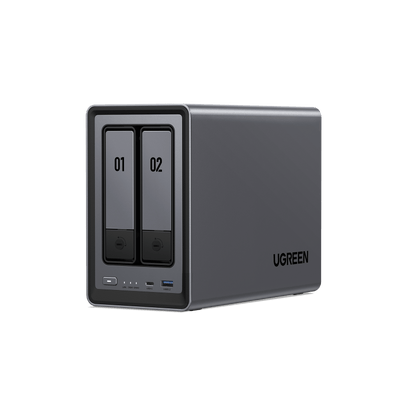
How to Fix a NAS Running Hot: Temps, Causes and Fixes
A UGREEN NAS owner posted a simple question on Reddit:
They’re using a DXP4800 Plus with one SSD for apps and three WD Red Plus 12TB hard drives. Their dashboard shows the system running “a little warm,” and the temperatures stay pretty consistent day to day. Their ask was straightforward: is there a way to cool it down, or is this normal and not worth worrying about?
Post Quote: Shared by a Reddit user.

This is actually one of the most common concerns we hear from NAS owners. The short answer is: it depends. While your drives might be operating within manufacturer specifications, "within spec" doesn't always mean "optimal for longevity." Most NAS hard drives are rated to operate at fairly high temperatures. For example, WD's WD Red Plus materials note MTBF assumptions at a 40°C drive temperature, with reliability derating above that, up to 65°C. (documents.westerndigital.com) .
When a NAS runs too hot, you get throttled performance, unexpected shutdowns, and—over time—accelerated drive failure. This guide covers specific temperature thresholds, diagnostic steps, and concrete fixes for each common heat source.
Common NAS Temperature Problems
There are many things that can make a NAS run hot. The first step in fixing the problem is to figure out what caused it.
Accumulation of Dust
Over time, dust acts like insulation on heatsinks and blocks airflow through drive bays.
Diagnosis
1.Visually inspect the dust accumulation on the magnetic dust-proof net
2.Check if temps have risen gradually over weeks or months
3.Listen for labored fan noise (dust on blades creates drag)
Fix
- Power off and unplug the NAS
- Move it to a well‑ventilated area (ideally outdoors or near an open window).
- Use canned compressed air in short bursts to blow dust out of the chassis and drive bays.
- Hold fan blades in place with a finger or tool—compressed air can overspin and damage bearings
- Use short bursts of compressed air; blow dust out of the chassis, not deeper in
- Keep the can upright—tilting can spray liquid propellant onto components
- Clean every 3 months, or monthly in dusty environments

Cooling systems that don’t work well
A failing fan or an overly quiet fan profile can leave heat trapped inside the chassis, especially during sustained drive activity.
Diagnosis
- Put your hand near the exhaust vent—you should feel steady airflow
- Listen for grinding, clicking, or silence where fan noise should be
Fix
- In UGOS Pro, open Control Panel → Hardware & Power → Fan. Switch the fan profile to a higher cooling mode (for example: Full power) for testing.
- Enable temperature alerts (buzzer ) for CPU and drive thresholds
- If fan RPM stays doesn’t increase, replace the fan
High Temperatures in the Air
Even a healthy cooling system struggles if the NAS is in a closed cabinet, pressed against a wall, or stacked next to other hot devices.
Fix
- Place the NAS in open air. Avoid closed cabinets or shelves with a door.
- Leave clearance around vents: at least ~10 cm behind the NAS and ~5 cm on each side (more is better).
- Keep the intake and exhaust paths unobstructed. Do not block drive bay ventilation.
- Do not stack heat sources next to it (routers, mini PCs, UPS exhaust vents, amplifiers).
- If the room runs hot, add room airflow (fan) or cooling. Lowering ambient temperature helps every component.
Single Drive Overheating
When one drive runs significantly hotter than others, the cause is either the drive itself or its position in the chassis or workload.

Possible Causes
•Drive-related: More platters (higher capacity = more heat), higher RPM model, manufacturing defect
•Bay-related: Middle bays often run warmer; poor airflow around that specific bay
•Workload-related: That drive hosts a VM, cache, or frequently accessed data
Diagnosis
1.In your NAS UI, compare temperatures across all drives
2.Check SMART data for the hot drive: look for reallocated sectors or other warnings
3.Bay swap test: Move the hot drive to a different bay. Wait 24 hours.
•If the drive stays hot in the new bay → problem is the drive
•If the original bay makes any drive hot → problem is airflow in that bay
Fix
- Drive problem: Check warranty; contact manufacturer for RMA if under warranty and SMART shows issues
- Bay problem: Move critical or high-capacity drives to better-ventilated bays (usually top and bottom)
- Workload problem: Move VMs, cache, or heavy-access shares to a cooler drive
Heat spikes during heavy workloads
NAS heat spikes often match background jobs. The common culprits are RAID rebuild/resync, RAID scrubbing, media indexing/thumbnails, and container workloads like transcoding or databases.
Common Heat-Generating Tasks
- RAID rebuilds and resyncs (extremely intensive)
- RAID scrubbing / data consistency checks
- Media indexing: photo AI, thumbnail generation, video analysis
- Video transcoding (Plex, Jellyfin, etc.)
- Large backup jobs
- Container workloads: databases, VMs, Docker apps
Diagnosis
- Note the time when temperature spikes occur
- Open Task Scheduler—look for tasks scheduled at that time
- Check Storage Manager for running RAID scrubs or rebuilds
- Check Resource Monitor for CPU and disk usage during the spike
Fix
- Reschedule intensive tasks to cooler periods: late night or early morning
- Stagger tasks: don’t run RAID scrub, backup, and indexing on the same night
- Disable or limit CPU-intensive features you don’t need (facial recognition, video transcoding)
- During RAID rebuilds: avoid other heavy tasks and let the rebuild complete
Quick Reference: Diagnosis and Response
| Fault | Diagnosis | Fix | Stop Workloads When |
|---|---|---|---|
| Dust | Temps up 5°C+ over months; visible buildup | Clean with compressed air; hold fans still | Drives >50°C |
| Fan Failure | no airflow; grinding noise | Switch fan profile; replace if dead | Fan dead + temps rising |
| Hot Room | Room >30°C; all components run warm | AC or relocate; increase fan speed | Room >35°C, no cooling |
| Bad Placement | Enclosed space; <10cm rear clearance | Relocate; ensure airflow path | Enclosed + temps climbing |
| Hot Drive | One drive 5°C+ above others | Bay swap test; RMA if drive issue | Drive >50°C + SMART warnings |
| Heavy Load | Temps spike at scheduled times | Reschedule tasks; reduce concurrency | Drives >50°C or CPU >85°C |
Important Notes
Data Loss Clarification
Overheating doesn’t directly corrupt your data. The risks are indirect: unclean shutdowns during writes can cause filesystem inconsistencies, and sustained high temperatures accelerate drive wear, increasing long-term failure risk. Address heat issues promptly, but don’t panic—your data isn’t immediately at risk if temps spike once.
RAID Is Not Backup
RAID protects against drive failure, not against data loss from overheating-related shutdowns, user error, ransomware, or filesystem corruption. To stay truly protected, it’s important to follow a broader backup plan—our overview of reliable NAS backup methods explains how to layer backups so your data is still recoverable when RAID alone isn’t enough.
FAQ
How do I check my NAS temperature?
Log in to your UGREEN NAS UGOS Pro interface,
- Click on Task Manager
- Navigate to the Running Status section, where you can monitor the CPU temperature and operating temperatures of all connected hard drives.
My NAS overheated once. Is it safe to use?
If you’ve fixed the underlying cause and temps now stay in normal range, it’s fine. Run a SMART check on all drives to verify no damage. If temps keep climbing despite fixes, have the hardware inspected.
How often should I clean my NAS?
Every 3 months is a good baseline in normal environments, or monthly if you have pets, carpet, or live in a dusty area. If you want a clearer routine for cleaning, temperature checks, and long-term care, this practical NAS maintenance guide breaks down what to check and when, so small issues don’t turn into performance problems.