Top 10 NAS Apps to Maximize Performance (Updated January 2026)
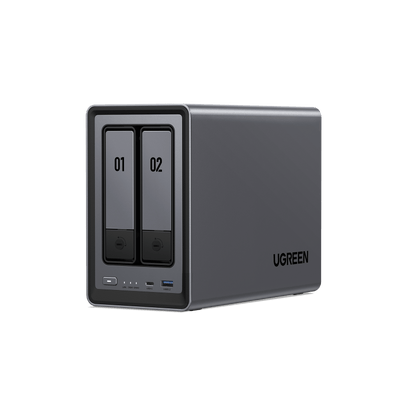
In this article, we’ll explore the top 10 NAS application categories that can transform your NAS from a basic storage box into a high-performance hub for productivity, entertainment, security, privacy, and smart home control. Whether you’re a tech enthusiast or just starting your NAS journey, these apps will help you maximize efficiency and performance while tailoring your NAS to meet your unique needs.
Key Takeaways:
- Ten essential NAS application categories enhance what your system can do: backup and recovery (Duplicati), media management (Plex/Jellyfin), file sync and private cloud (Nextcloud/Syncthing), security monitoring (Uptime Kuma), virtualization and containerization (TrueNAS SCALE/Docker), file sharing and network protocols (OpenMediaVault), remote access (WireGuard), password management (Vaultwarden), home automation (Home Assistant), and network-wide ad blocking/DNS security (Pi-hole).
- Security and privacy improvements go beyond backups: combine encrypted backups, and a self-hosted password vault with DNS filtering to reduce trackers and block known malicious domains at the network level.
- With always-on services and Docker support, a NAS can become a true home or small-office platform—powering streaming, private cloud collaboration, smart home automations, and reliable monitoring from one centralized system.

Password Management and Secrets Vaults
As NAS storage becomes the central hub for files, services, and remote access, it also becomes the place where your most sensitive information lives—login credentials, recovery codes, API keys, and device passwords. A password manager helps you store and share these securely, reducing the risk of weak passwords, credential reuse, and accidental exposure. For home users and small teams alike, a self-hosted vault can be one of the most impactful upgrades you can add to a NAS.
Vaultwarden: A Lightweight, Self-Hosted Password Vault
Vaultwarden is a popular, lightweight, community-driven server compatible with Bitwarden clients. It’s designed for users who want a polished password manager experience—without relying on third-party cloud hosting. Paired with the official Bitwarden apps (desktop and mobile), Vaultwarden makes it easy to store, organize, and access passwords from anywhere while keeping your data under your control.
- Strong Encryption: Uses end-to-end encryption so your vault data is protected before it ever leaves your device.
- Cross-Platform Clients: Works with Bitwarden apps on Windows, macOS, Linux, Android, iOS, and web browsers.
- Secure Sharing: Share credentials with family members or teammates using controlled access and permissions.
- 2FA Support: Add an extra layer of protection with two-factor authentication for vault access.
- Great for NAS + Docker: Easy deployment and updates via Docker containers.
Why Use It?
Vaultwarden is ideal for NAS owners who want to centralize credential security while maintaining privacy and control. It’s particularly useful for:
- Storing NAS and router credentials alongside recovery codes and device admin passwords.
- Managing shared logins for households or small teams without sending passwords over chat.
- Keeping API keys and service tokens organized when you run multiple NAS apps (Nextcloud, Plex/Jellyfin, monitoring tools, etc.).
- Reducing security risk by generating unique, complex passwords for every service.
Installation Tips
- Deploy via Docker: Install Vaultwarden as a container for easier maintenance and isolation.
- Use HTTPS from day one: Put Vaultwarden behind a reverse proxy (e.g., Nginx Proxy Manager, Caddy, or Traefik) and enable TLS to protect logins in transit.
- Back up your vault data: Include the Vaultwarden data directory in your NAS backup plan (e.g., Duplicati) so you can restore quickly if needed.
Other Noteworthy Password and Secrets Tools
- Bitwarden (Self-Hosted): The official server option with enterprise features and broad client support.
- Passbolt: A team-focused password manager designed around sharing and collaboration, great for small businesses.
- Gopass / pass: Developer-friendly, lightweight solutions that store secrets in Git-compatible formats—useful for technical users and homelabs.
Home Automation and Smart Home Hubs
A NAS running 24/7 isn’t just ideal for storage—it can also become the reliable “brain” of your smart home. By hosting a home automation platform on your NAS, you can centralize control of lights, sensors, cameras, and appliances while keeping your data local for better privacy and faster response times. Whether you’re building a simple setup or a more advanced smart home, the right apps can turn your NAS into a powerful automation hub.
Home Assistant
Home Assistant is one of the most popular open-source home automation platforms, known for its huge device ecosystem, strong local-first approach, and deep customization. It lets you connect and automate smart devices across brands—then control everything from a single dashboard on your phone, tablet, or browser.
- Broad Device Compatibility: Integrates with thousands of smart home products (lights, thermostats, plugs, sensors, cameras, and more).
- Local-First Control: Prioritizes local communication for faster automation and better privacy (less reliance on cloud services).
- Powerful Automations: Create advanced rules and routines (time-based, sensor-based, location-based) with an easy UI or YAML.
- Custom Dashboards: Build personalized control panels for different rooms, family members, or device types.
- Expandable Ecosystem: Add integrations, community add-ons, and companion apps for even more functionality.
Why Use It?
Home Assistant is ideal for NAS users who want a smart home that remains functional even if the internet goes down. It’s particularly useful for:
- Centralizing smart home control across different brands and ecosystems into one unified interface.
- Keeping automations private by reducing dependence on third-party cloud platforms.
- Building advanced routines like “Away Mode,” energy-saving schedules, or motion-triggered lighting.
- Improving reliability with always-on local automation and faster device response times.
Installation Tips
- Install via Docker: Deploy Home Assistant in a container for easy setup and updates on NAS systems that support Docker.
- Plan your device connectivity: For Zigbee/Z-Wave devices, you may need a USB dongle connected to your NAS (or a network-based hub).
- Secure remote access: If you want to control your smart home from outside your network, use WireGuard VPN or a secure reverse proxy with HTTPS.
Other Noteworthy Smart Home Tools
- Node-RED: A visual, flow-based automation tool that pairs well with Home Assistant for advanced logic and integrations.
- Mosquitto (MQTT Broker): A lightweight messaging hub for IoT devices—especially useful for sensors and DIY smart home builds.
- Zigbee2MQTT: A flexible bridge that connects Zigbee devices to MQTT, enabling broad compatibility across smart home platforms.
Network-Wide Ad Blocking and DNS Security
If you want an upgrade you can feel immediately, network-wide ad blocking and DNS security is one of the best additions to a NAS-powered setup. By running a dedicated DNS filtering service on your NAS, you can reduce ads and trackers across your entire home network—on phones, tablets, smart TVs, and even IoT devices—without installing browser extensions on every device. Beyond cleaner browsing, DNS filtering can also add a practical layer of protection by blocking known malicious domains before a connection is ever made.
Pi-hole: Simple, Powerful Network-Wide DNS Filtering
Pi-hole is a widely used open-source DNS sinkhole that blocks ads, trackers, and unwanted domains at the network level. Instead of filtering content inside each app or browser, Pi-hole prevents devices on your network from resolving known ad and tracking domains—resulting in faster page loads, less clutter, and improved privacy.
- Network-Wide Blocking: Filters ads and trackers for every connected device, including smart TVs and mobile apps.
- Custom Blocklists and Allowlists: Add or remove domains easily to fine-tune what gets blocked.
- Detailed Visibility: View DNS queries, top blocked domains, and per-device activity for better network insight.
- Lightweight and Efficient: Runs smoothly on modest hardware, making it a great fit for NAS environments.
- Works Great with Docker: Easy deployment and management using containers.
Why Use It?
Pi-hole is ideal for NAS users who want cleaner browsing and stronger privacy without managing settings device-by-device. It’s particularly useful for:
- Reducing ads and trackers across all devices on your home network, including mobile apps.
- Improving performance by cutting unnecessary network requests and speeding up page loads.
- Adding DNS-level security by blocking known malicious or phishing domains.
- Monitoring network activity to spot unusual DNS behavior from compromised devices or misconfigured apps.
Installation Tips
- Deploy on your NAS: Install Pi-hole via Docker (recommended) or directly on supported NAS platforms.
- Set it as your DNS server: Update your router’s DNS settings to point to Pi-hole so every device uses it automatically.
- Configure upstream DNS: Choose a trusted upstream provider (or pair with Unbound for local recursive DNS) to improve privacy and reliability.
- Keep access restricted: Limit the admin dashboard to your local network or secure it via VPN for remote management.
Other Noteworthy DNS and Ad-Blocking Tools
- AdGuard Home: An all-in-one DNS filtering solution with a modern UI and flexible rules, often considered a strong alternative to Pi-hole.
- Unbound: A validating, recursive DNS resolver that reduces reliance on third-party DNS providers and can improve privacy.
- Cloudflared (DNS over HTTPS): Adds encrypted DNS transport for networks that want to prevent DNS snooping (best used alongside filtering tools).
Backup and Recovery Tools
When it comes to safeguarding your data, backup and recovery tools are the cornerstone of any reliable NAS setup. These tools ensure that your critical files are protected against accidental deletion, hardware failure, or even cyberattacks. Among the many options available, Duplicati stands out as a robust, open-source solution that combines security, efficiency, and versatility.
Duplicati: A Comprehensive Backup Solution
Duplicati is a free, open-source backup client designed specifically for NAS environments. It offers a range of powerful features that make it an ideal choice for both home users and businesses:
- Strong Encryption:;Duplicati uses AES-256 encryption to secure your backups, ensuring that only you can access your data.
- Incremental Backups:;After the initial full backup, Duplicati performs incremental backups, transferring only the changes made since the last backup. This saves both storage space and bandwidth.
- Compression:;All backup data is compressed before being encrypted and uploaded, further optimizing storage efficiency.
- Multi-Platform Support:;Compatible with macOS, Windows, Linux, and headless NAS devices.
- Scheduler:;Automate backups with a built-in scheduler to ensure your data is always up-to-date.
Why Use Duplicati?
Duplicati is more than just a backup tool—it’s a comprehensive solution that addresses common challenges in data management:
- It handles network interruptions gracefully by resuming backups where they left off.
- It supports a wide variety of storage destinations, including FTP, SFTP, WebDAV, Amazon S3, Google Drive, and more.
- Its intuitive web interface allows you to configure and manage backups remotely on headless NAS devices.
Installation Tip
Installing Duplicati on your NAS is straightforward:
- If your NAS supports Docker, you can deploy Duplicati as a container for easy setup and management.
- Alternatively, install it directly on your NAS using the provided installation packages.
- Once installed, access Duplicati via its web interface to configure your backup jobs.
Other Noteworthy Backup Tools
- ReclaiMe NAS Data Recovery:;Ideal for recovering data from RAID configurations in case of hardware failure.
- EaseUS Data Recovery Wizard:;A user-friendly tool designed for recovering accidentally deleted or lost files from healthy NAS devices.
- Stellar Toolkit for Data Recovery:;A professional-grade solution supporting various file systems like NTFS, BTRFS, and HFS+, making it suitable for advanced recovery scenarios.
Media Management
Whether you’re a movie buff, a music enthusiast, or someone who loves to keep their photo library organized, NAS devices can serve as the ultimate hub for storing, organizing, and streaming your media files.
{{UGPRODUCT}}
Plex and Jellyfin: The Ultimate Media Servers
Plex and Jellyfin Both are powerful media server applications that allow you to organize your digital media collection and stream it seamlessly across multiple devices.
Plex
- Automatically organizes your movies, TV shows, music, and photos with rich metadata (e.g., cover art, cast info, synopses).
- Offers multi-device streaming across TVs, smartphones, tablets, and web browsers.
- Supports user profiles for personalized viewing experiences.
- Optional Plex Pass subscription unlocks premium features like offline downloads and live TV.
Why Use It?
Plex is perfect for users who want an intuitive interface with minimal setup. If you’re new to it, this quick walkthrough on installing Plex on a NAS helps you get the server running and your libraries organised in minutes.
Jellyfin
- A completely free and open-source alternative to Plex.
- No subscription required - access all features without paywalls.
- Supports similar metadata fetching and multi-device streaming.
- Highly customizable with plugins and community-driven enhancements.
Why Use It?
Jellyfin is ideal for users who prefer an open-source solution without recurring costs. It’s also great for privacy-conscious individuals since it doesn’t rely on external servers like Plex does. For straightforward setup, our step-by-step guide to install Jellyfin on a NAS walks you through the process from basic app installation to more advanced options.
Optional Advanced Tools for Media Automation
For users who want to take their media management to the next level, consider pairing Plex or Jellyfin with automation tools like Sonarr;and Radarr:
- Sonarr: Automatically tracks TV shows you’re interested in and downloads new episodes as they become available.
- Radarr: Similar to Sonarr but focused on movies. It helps you find and organize films effortlessly.
- Installation Tip: Both tools can be installed on your NAS using Docker containers for streamlined management.
Installation Tips
- Install Plex or Jellyfin directly from your NAS app store .
- If not available natively, set up Plex or Jellyfin using Docker containers for better compatibility and isolation.
- Configure your media folders within the app to ensure proper organization and metadata fetching.
File Synchronization and Cloud Services
NAS can act as a private cloud, offering seamless file access, sharing, and collaboration across devices—without relying on third-party cloud providers. Applications like Nextcloud;and Syncthing;empower users to take full control of their data while ensuring security, privacy, and convenience.
Nextcloud: Your Personal Cloud Solution
Nextcloud provides a feature-rich environment for file storage, sharing, and collaboration, rivaling popular services like Google Drive or Dropbox—but with the added benefit of complete data ownership.
Nextcloud
- Real-time file synchronization across devices (desktop, mobile, and web).
- Secure file sharing with password protection, expiration dates, and user permissions.
- Integration with third-party apps like calendars, contacts, and task managers.
- End-to-end encryption to protect sensitive data.
- Collaborative editing of documents via integrations with tools like OnlyOffice or Collabora Online.
Why Use It?
Nextcloud is perfect for users who want the functionality of commercial cloud services but with total control over their data. It’s especially valuable for businesses concerned about compliance or individuals seeking greater privacy.
Installation Tips
- Install Nextcloud via your NAS app store or as a Docker container.
- Configure storage paths to point to your NAS directories.
- Set up user accounts and enable HTTPS for secure access.
- Install the Nextcloud client on your devices for real-time syncing.
Security and Monitoring
Powerful tools available to help you monitor NAS system health, detect potential issues, and safeguard your data from unauthorized access or cyber threats.
Uptime Kuma: Lightweight Monitoring for Peace of Mind
Uptime Kuma;is a modern, lightweight monitoring tool that helps you keep track of your NAS’s performance and uptime. With an intuitive interface and real-time alerts, it ensures you’re always aware of the health of your system.
Uptime Kuma
- Real-time monitoring of services, websites, or devices.
- Notifications via email, Telegram, Slack, Discord, and more.
- Customizable dashboards for an at-a-glance view of system health.
- Easy-to-use web interface for setup and management.
Why Use It?
Uptime Kuma is perfect for users who want a simple yet powerful tool to monitor their NAS and ensure it’s operating smoothly. It’s especially useful for detecting downtime or connectivity issues before they escalate into bigger problems.
Installation Tips
- Install via Docker or directly on your NAS if supported by its app store.
- Configure monitoring targets (e.g., services running on your NAS or external websites).
- Set up notification channels for instant alerts in case of issues.
Virtualization and Containerization
By leveraging virtualization and containerization technologies, you can host multiple operating systems, deploy applications in isolated environments, and maximize resource efficiency.
TrueNAS SCALE: Combining Both Worlds
- Supports virtual machines using KVM (Kernel-based Virtual Machine).
- Enables container deployment with Docker or Kubernetes.
- Ideal for advanced users who need scalable solutions for both VMs and containers.
File Sharing and Network Protocols
With solutions like OpenMediaVault (OMV), you can simplify secure file sharing within networks while maintaining compatibility with Windows, macOS, and Linux environments.
OpenMediaVault (OMV): A Versatile NAS Solution
OpenMediaVault (OMV) is a free, open-source operating system built on Debian Linux that transforms any hardware into a fully functional NAS. It supports multiple file-sharing protocols, making it an excellent choice for home users, small offices, and DIY enthusiasts.
OpenMediaVault
- SMB/CIFS: Ideal for Windows and macOS users, enabling easy file sharing with advanced features like authentication and encryption.
- NFS: Best for Linux environments, offering lightweight and high-speed file transfers.
- AFP: Legacy support for older macOS systems.
- FTP/Rsync: For straightforward file transfers or backups.
- Comprehensive user and permission management for secure access control.
- Expandable functionality through plugins like Docker or antivirus tools (e.g., ClamAV).
Why Use It?
OMV simplifies the setup and management of file-sharing services through its intuitive web-based interface. It’s particularly useful for those who want an out-of-the-box solution with minimal configuration.
Installation Tips
- Create Shared Folders:
- Navigate to Storage; Shared Folders in the OMV interface.
- Create a new folder, assign it to a volume, and set basic permissions.
- Enable SMB/NFS Services:
- Go to Services; SMB/CIFS or Services; NFS to enable the desired protocol.
- Add the shared folder to the service configuration.
- Set User Permissions:
- Under Access Rights Management, assign specific permissions (e.g., Read/Write) to users or groups for each shared folder.
Remote Access and VPN Solutions
Accessing your NAS remotely is often a necessity. a robust VPN solution can make all the difference. Among the various options available, WireGuard VPN stands out as a lightweight, fast, and secure way to connect to your NAS from anywhere.
WireGuard VPN: The Ultimate Remote Access Solution
WireGuard is a modern VPN protocol known for its simplicity, speed, and strong encryption. Unlike traditional VPNs, it offers a streamlined codebase and efficient performance, making it an excellent choice for NAS users looking to securely access their devices remotely.
WireGuard
- Fast Speeds: WireGuard is designed to deliver high-speed connections with minimal overhead.
- Strong Encryption: Uses state-of-the-art cryptographic protocols to ensure data security.
- Lightweight Design: A small codebase reduces complexity and improves reliability.
- Cross-Platform Support: Compatible with Windows, macOS, Linux, Android, and iOS.
- Ease of Use: Simple configuration with a user-friendly interface (e.g., wg-easy).
Why Use It?
WireGuard ensures that you can securely access your NAS from anywhere without exposing multiple services or ports to the internet. It’s particularly useful for:
- Protecting sensitive data when using public Wi-Fi.
- Accessing geo-restricted services via your home network.
- Consolidating exposed ports into a single secure connection.
Installation Tips
- Install Docker
- Ensure Docker is installed on your NAS.
- Most modern NAS systems like TrueNAS or OpenMediaVault support Docker installations.
- Deploy wg-easy
- Use the wg-easy Docker image to simplify the setup process.
- This tool provides a web-based interface for managing WireGuard configurations.
- Example command for deployment:
docker run -d \
  --name=wg-easy \
  -e WG_HOST=<YourPublicIPOrDomain> \
  -e PASSWORD=<AdminPassword> \
  -p 51820:51820/udp \
  --cap-add=NET_ADMIN \
  --restart unless-stopped \
  wg-easy
- Log in to your router and forward UDP port 51820 (or the port you’ve configured) to your NAS’s local IP address.
- Access the wg-easy web interface to generate configuration files (.conf) or QR codes for devices like laptops and smartphones.
- Import the configuration file into the WireGuard client app on your device and activate the connection.
Related reading: Troubleshooting NAS Remote Access Guide.
Conclusion
By leveraging the right applications, you can unlock the full potential of your NAS, tailoring it to meet your unique needs, whether you’re a home user, a content creator, or a business professional.
Join the Conversation
We’d love to hear from you! What are your favorite NAS applications? Have you tried any of the tools mentioned in this article? Or do you have questions about setting up or optimizing your NAS? Share your thoughts in the comments below - we’re here to help and learn from each other!