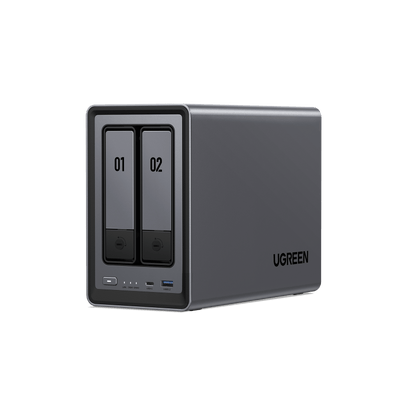
What Is RAID? RAID 0 vs 1 vs 5 vs 6 vs 10 Explained
RAID (Redundant Array of Independent Disks) combines multiple drives into one logical storage pool to improve performance, increase fault tolerance, or both—depending on the RAID level you choose. Some RAID levels prioritize speed (like RAID 0), while others prioritize redundancy (like RAID 1, 5, 6, or 10).
Key Takeaways
- RAID improves uptime by protecting against drive failure (in redundant RAID levels), and can also improve performance (especially reads).
- RAID 0, 1, 5, 6, 10 all behave differently—choosing the right level depends on your bay count, budget, and risk tolerance.
- RAID is not a backup. It won’t protect you from accidental deletion, ransomware, theft, or disasters. Pair RAID with a real backup plan.

How RAID Works
RAID levels are built from three core techniques.
1) Striping (Performance)
Striping splits data across multiple drives so reads/writes can happen in parallel. This can boost speed, but by itself it does not protect your data. (RAID 0 is the classic “striping only” example.)
2) Mirroring (Simple Redundancy)
Mirroring writes the same data to two (or more) drives. If one drive fails, the other still has a full copy. (RAID 1 and the mirrored half of RAID 10 use mirroring.)
3) Parity (Efficient Redundancy)
Parity stores calculated information that can be used to rebuild data if a drive fails—without duplicating everything. This improves capacity efficiency compared with pure mirroring, but rebuilds and write performance can be more complex. (RAID 5 and RAID 6 use parity.)
Understanding RAID Levels
RAID technology encompasses several configurations, each designed to meet different needs in terms of performance, redundancy, and storage efficiency. Below is an overview of the most common RAID levels:
| RAID Level | Min Drives | Fault Tolerance | Usable Capacity | Performance Notes | Best For |
|---|---|---|---|---|---|
| RAID 0 | 2 | 0 drives | ~ N × smallest drive | Fast reads/writes; no redundancy | Scratch data, speed-only workloads with backups |
| RAID 1 | 2 | 1 drive (per mirror) | ~ 1 × smallest drive (per mirror pair) | Great reads; writes similar to single drive | 2-bay NAS, critical personal/business files |
| RAID 5 | 3 | 1 drive | ~ (N − 1) × smallest drive | Good reads; writes slower than RAID 0/10 | 4-bay NAS balance of capacity + protection |
| RAID 6 | 4 | 2 drives | ~ (N − 2) × smallest drive | Safer than RAID 5; writes typically slower than RAID 5 | Large arrays, higher uptime needs, risk-averse setups |
| RAID 10 | 4 | 1 drive per mirror (varies by which drives fail) | ~ (N / 2) × smallest drive | Excellent reads/writes; fast rebuilds | Databases, VMs, heavy editing workflows |
RAID Level Details (Pros & Cons)
| RAID Level | Description | Advantages | Disadvantages |
|---|---|---|---|
| RAID 0 | Striping: Data is split across multiple disks without redundancy. | High performance: Efficient use of disk space. | No redundancy: If one disk fails, all data is lost. |
| RAID 1 | Mirroring: Data is duplicated across two or more disks. | Complete data redundancy: Simple recovery process. | Costly due to halved usable space; requires at least two disks. |
| RAID 5 | Striping with parity: Data and parity information are distributed across three or more disks. | Good balance of performance and fault tolerance: Can survive one disk failure. | Slower write speeds: Complex recovery process compared to RAID 1. |
| RAID 6 | Striping with double parity: Similar to RAID 5 but can survive two disk failures. | Higher fault tolerance than RAID 5: Suitable for critical data storage. | More complex setup: Slower write speeds than RAID 5. |
| RAID 10 | Combination of mirroring and striping: Data is both mirrored and striped across multiple disks. | High performance with redundancy: Excellent read/write speeds. | Requires a disk count that is even: Costly due to needing more drives for redundancy. |
At its core, RAID addresses two fundamental challenges: protecting against data loss due to hardware failures and improving read/write speeds for better system performance. By distributing data across multiple disks, RAID not only ensures that your information remains accessible even in the event of a drive failure but also optimizes data retrieval processes.
To determine the right balance between redundancy and storage efficiency for your specific needs, using a RAID storage capacity calculator can help you visualize exactly how different configurations affect your usable space and fault tolerance before committing to a setup.
Use Cases for Each Level:
- RAID 0: Ideal for applications requiring high speed, such as video editing or gaming, where data loss is not critical.
- RAID 1: Perfect for small businesses that prioritize data protection over cost, ensuring critical files are always available.
- RAID 5: Commonly used in enterprise environments where a balance between performance and data protection is necessary, such as file servers.
- RAID 6: Suitable for organizations that manage large volumes of critical data and cannot afford downtime due to disk failures.
- RAID 10: Best for high-performance applications like databases where both speed and redundancy are essential.
Cases for Different RAID Configurations
Understanding how RAID configurations can be applied in various settings is crucial for making informed decisions about data storage solutions. Here are some common use cases:
- Common Home User Applications: Many home users are increasingly aware of the need for data protection as they store valuable personal information, photos, and videos on their computers. A common setup for home users is RAID 1, where two drives mirror each other. This configuration provides peace of mind by ensuring that if one drive fails, all personal files remain safe on the other drive. For example, a family might use RAID 1 to protect their collection of family photos and videos, ensuring these cherished memories are not lost due to hardware failure. For those looking to refine their approach, our Best Photo Storage Guide 2024 offers practical tips to optimize storage strategies while maintaining RAID-level security.
- Media Production: The media industry often deals with large files that require high-speed access and redundancy. RAID 10, which combines mirroring and striping, is ideal for video editing studios where performance is critical. By using RAID 10, a production house can achieve fast read/write speeds while ensuring that project files are backed up in real-time. This setup allows editors to work seamlessly without worrying about data loss during intensive editing sessions.
- Small Business Applications: Small businesses often operate with limited IT resources but require reliable data protection. Implementing RAID 1 (mirroring) allows them to duplicate critical data across two drives. This setup ensures that if one drive fails, the business can quickly recover its data without significant downtime. For example, a local accounting firm might use RAID 1 to safeguard client financial records, ensuring continuous access and compliance with data protection regulations.
Comparing RAID Storage to Non-RAID Options (Single Drive, Basic, JBOD)
When you’re choosing storage for a NAS, the real decision is usually redundancy vs simplicity.
- Non-RAID (single drive / Basic): easiest and cheapest, but a single drive failure can mean total data loss.
- JBOD: combines multiple drives into one big pool, but typically does not add redundancy—if a drive fails, you may lose part (or all) of the data depending on how the volume is configured.
- RAID: uses mirroring or parity to keep your data available even if a drive fails (depending on the RAID level).
RAID vs Non-RAID: quick comparison
| Feature | RAID storage | Non-RAID (Single drive / Basic / JBOD) |
|---|---|---|
| Drive-failure protection | Yes (varies by RAID level) | No (typically) |
| Performance | Can improve reads/writes (some levels) | Limited to a single drive or simple pooling |
| Usable capacity | Reduced by redundancy (RAID 1/6/10) | Maximum raw capacity |
| Complexity | Higher (setup + monitoring) | Lower (simpler to manage) |
| Best for | Always-on data availability and uptime | Budget setups or non-critical data |
When RAID makes sense
Choose RAID if you care about uptime and want to reduce the chance that a single drive failure takes your storage offline—especially for shared files, media libraries, or work projects.
When non-RAID is sufficient
Non-RAID can be fine if:
- the data is non-critical, or
- you already keep strong backups elsewhere and just want the simplest storage possible.
Important: RAID helps with drive failure, but it is not a backup. It won’t protect you from accidental deletion, ransomware, theft, or disasters—so pair RAID with a backup plan.
Setting Up a RAID System
Setting up a RAID system can seem daunting, but with the right components and steps, it can be a straightforward process. Here’s how to get started:
1. Hardware Requirements:
- Multiple Hard Drives: Depending on the RAID level you choose, you will need at least two drives (for RAID 1) or more (for RAID 5, 6, or 10).
- RAID Controller: This can be a dedicated hardware controller card or integrated into your motherboard. Ensure it supports the desired RAID levels.
- Cables and Power Supply: SATA cables for connecting drives and sufficient power supply connections.
2. Software Requirements:
- Operating System Support: Ensure your operating system (Windows, Linux, etc.) supports RAID configurations. Many modern systems include built-in tools for setting up software RAID.
3. Steps to Configure RAID:
- Install the Hard Drives: Physically install your hard drives into your NAS device.
- Access BIOS/UEFI Settings: Access the RAID creation and management interface in the NAS system’s BIOS/UEFI settings.
- Select RAID Level: Choose the desired RAID level (e.g., RAID 1 for mirroring or RAID 5 for striping with parity). Use your operating system’s disk management tool to initialize and format the drives as a single logical unit.
- Monitor Performance: After setup, regularly monitor the health of your RAID array through software tools to ensure optimal performance.
One highly recommended product is the UGREEN DXP4800 Plus, a powerful 4-bay Network Attached Storage (NAS) device designed for users seeking high performance and flexibility in their data management solutions. Powered by a 12th Generation Intel Pentium Gold 8505 processor, this NAS provides robust processing capabilities with five cores and six threads, ensuring smooth multitasking and efficient data handling.
{{UGPRODUCT}}
Supports a wide range of RAID configurations (Basic, JBOD, RAID 0, 1, 5, 6, and 10), providing users with the flexibility to choose the best setup for their needs. Its professional-grade encryption ensures that data remains secure during transmission and storage.
Common Myths About RAID
Despite its advantages, RAID technology is often surrounded by misconceptions that can mislead users. Here are some common myths about RAID and the truths behind them:
Myth 1: RAID is a Backup Solution
Reality: While RAID provides redundancy and can protect against hardware failures, it is not a substitute for backups. If data is accidentally deleted or corrupted, RAID will not recover lost files. Regular backups to external drives or cloud storage are essential for comprehensive data protection.
Myth 2: All RAID Levels Offer the Same Level of Redundancy
Reality: Different RAID levels provide varying degrees of redundancy and performance. For example, RAID 0 offers no redundancy at all, while RAID 1 provides complete mirroring of data. Understanding these differences is crucial when selecting a RAID configuration that meets your specific needs.
Myth 3: RAID Makes Data Inaccessible During Drive Failures
Reality: Depending on the RAID level used, data may still be accessible even when one drive fails. For instance, in a RAID 5 configuration, data remains accessible during a single drive failure due to the parity information stored across the remaining drives. However, performance may be impacted until the failed drive is replaced.
Myth 4: Setting Up RAID is Too Complicated for the Average User
Reality: While setting up certain types of RAID can be complex, many modern NAS devices and software solutions offer user-friendly interfaces that simplify the process. With proper guidance and resources, average users can successfully implement and manage a RAID system.
Myth 5: All Drives in a RAID Array Must Be Identical
Reality: While it is recommended to use drives of similar size and speed for optimal performance, it is not strictly necessary. Different drives can be used in a RAID array; however, using dissimilar drives may result in reduced performance or capacity limitations based on the smallest drive in the array.
Conclusion
As you consider your own data management strategies, take time to evaluate whether a RAID configuration could benefit your storage needs. Whether you are protecting critical business data or preserving cherished family memories, implementing RAID can provide peace of mind against potential data loss.
We encourage you to share your thoughts or experiences with RAID in the comments below. If you have further questions or would like to explore additional resources on this topic, feel free to reach out. Your journey toward effective data management starts here!